Kling AI: Turn a Product Photo Into a Short Video
Make a simple product clip with Kling AI: choose a good photo, describe the motion, check the result and finish the video for your audience.
On this page
Kling AI can turn a still image into a short generated video. For a shop owner or creator, that can mean starting with a product photo and trying a gentle camera move, a change in the background or a simple action.
It is useful for visual ideas and short clips. It does not automatically deliver a finished advert or keep every product detail perfect. Your job is to choose the starting image, guide the movement and check what changed.
Start with a photo worth keeping
Use a clear photo of the product you actually want to show. A plain background is often easier to work with than a busy shelf. Make sure the shape, colour and important details are visible.
If the image already has a blurry label, video generation will not reliably turn it into correct lettering. Add readable text and your real logo later in the edit.
For practice, imagine a reusable bottle on a desk. You want a short clip where the camera moves closer while the bottle stays recognisable. That is an example brief, not a clip we are claiming to have generated for a client.
Tell Kling what should move
The image shows what the scene looks like. Your text should explain the action you want. Try one main movement first.
The camera slowly moves closer to the bottle on the desk.
The bottle stays in place.
Soft natural light. Calm, simple product shot.
You can ask for details to stay unchanged, but that request is not a guarantee. Watch the result all the way through. A product that looks correct in the first frame may change in the middle.
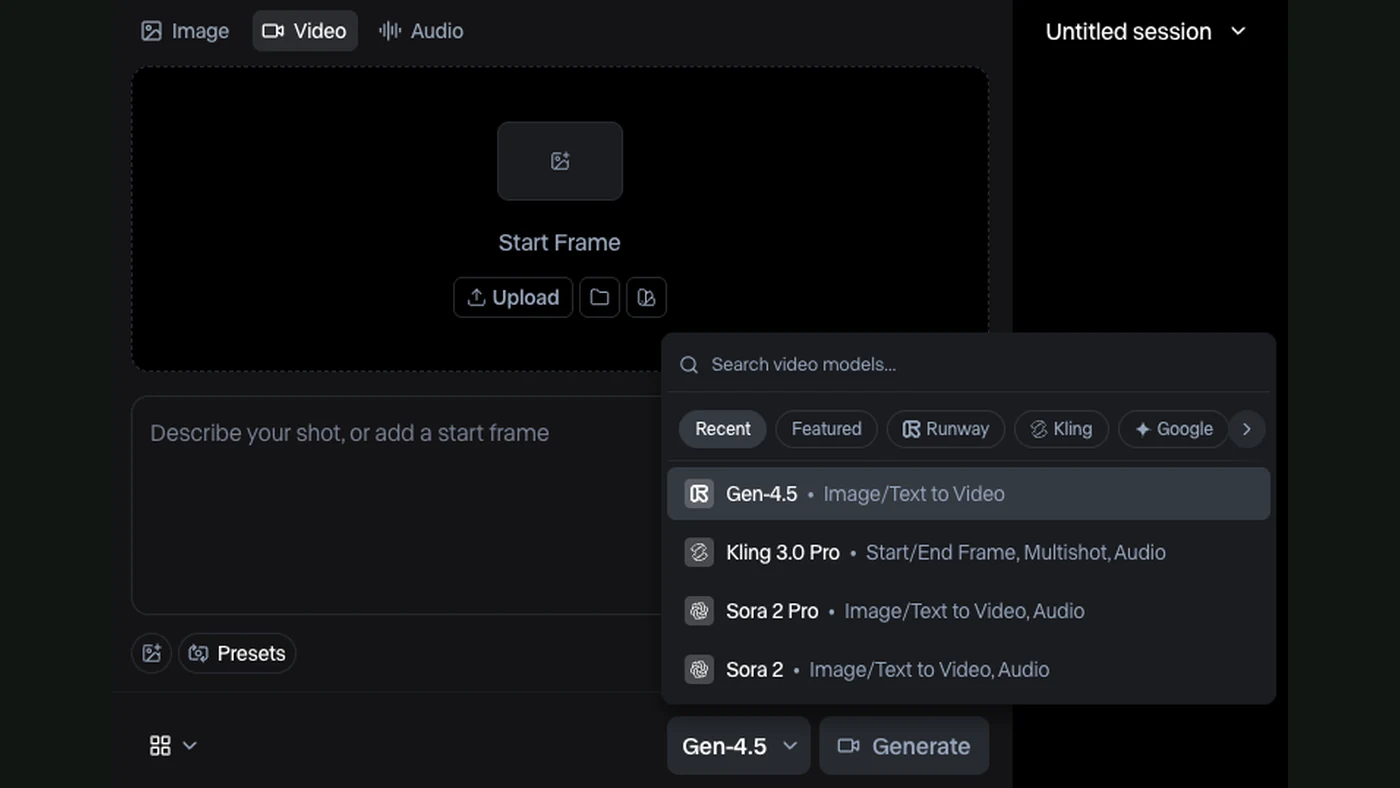
The Kling image-to-video interface on fal verifies the image-and-prompt workflow used in this guide. Native Kling menus and available models may differ from that provider’s interface. We are not calling one particular version the newest.
Choose one job for the clip
| Your aim | Try first | Keep for the final edit |
|---|---|---|
| Show the product clearly | A gentle camera move | Product name and offer |
| Give it a mood | Simple light or background motion | Music and colour adjustments |
| Make a social post | A composition with space for text | Captions and your call to action |
| Explore a concept | One visual idea per attempt | A decision on which idea to keep |
Do not ask the first generation to handle a complicated performance, a perfect logo, a long speech and several camera moves at once. It becomes harder to see which part caused a problem.
Check the boring details too
Look at the product shape, labels, reflections and any hands or faces. Check the beginning, middle and end. Also check whether the clip can be cropped to the format you need without losing the main subject.
If the clip changes the product, try a simpler movement or a cleaner starting image. Change one thing between attempts and keep a note of the prompt. That way a useful result becomes something you can learn from.
Finish it as a video
Choose the best clip, trim it and add your message in an editor. A short product video may need a title, a final frame, music and captions. Check it on a phone, where many viewers will see it.
The cost depends on the service and the generations you try. Plan for rejected attempts as well as the clip you keep; check the current credits or charges before a batch.
Learn it or have the video made
With FollowAI, you can learn AI video or order a video. In learning, you practise the whole process: the idea, references, generation, checking and editing. For an order, we agree the brief and deliverables and build the finished piece around them.
If you want to compare creative approaches first, read our Runway workflow or Flow scene guide.
Sources
- fal: Kling image-to-video model interfaceOfficial documentation
- Runway: image-to-video promptingOfficial documentation