MCP Explained: When Your AI Needs a Tool Connection
MCP connects an AI assistant to supported tools and data. See when you need it, what it does and how to begin with a small connection.
On this page
MCP is a standard way for an AI assistant to connect to tools and information outside the conversation. For example, a supported connection might let the assistant read project tasks or look up information in a service you use.
You need a connection when the job needs access, not just an explanation. Asking AI how to write a report is one thing. Asking it to read the right project records and prepare that report is another.
Think about the job first
| You want | Do you need a connection? |
|---|---|
| Ideas for a project | Usually no |
| A summary of text you paste | Usually no |
| Current information from a connected tool | Possibly, if a supported connection exists |
| An update inside another service | Possibly, with permission to make that change |
There may be other ways to connect a service. MCP is not the only option and you do not need it for every AI task.
What does the connection provide?
The assistant uses an MCP client. A server presents the supported tools or resources. In plain language: one side asks, and the other side explains what it can provide and how to call it.
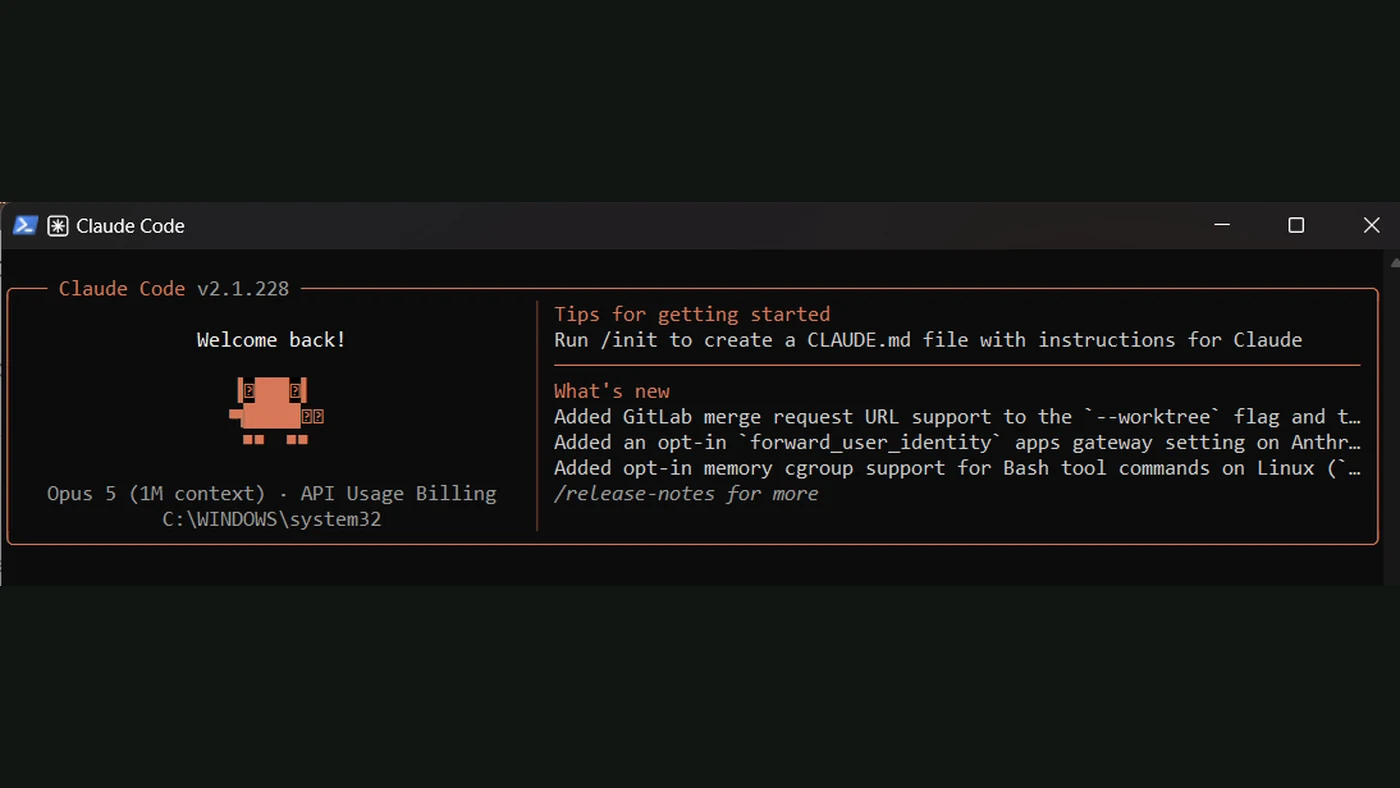
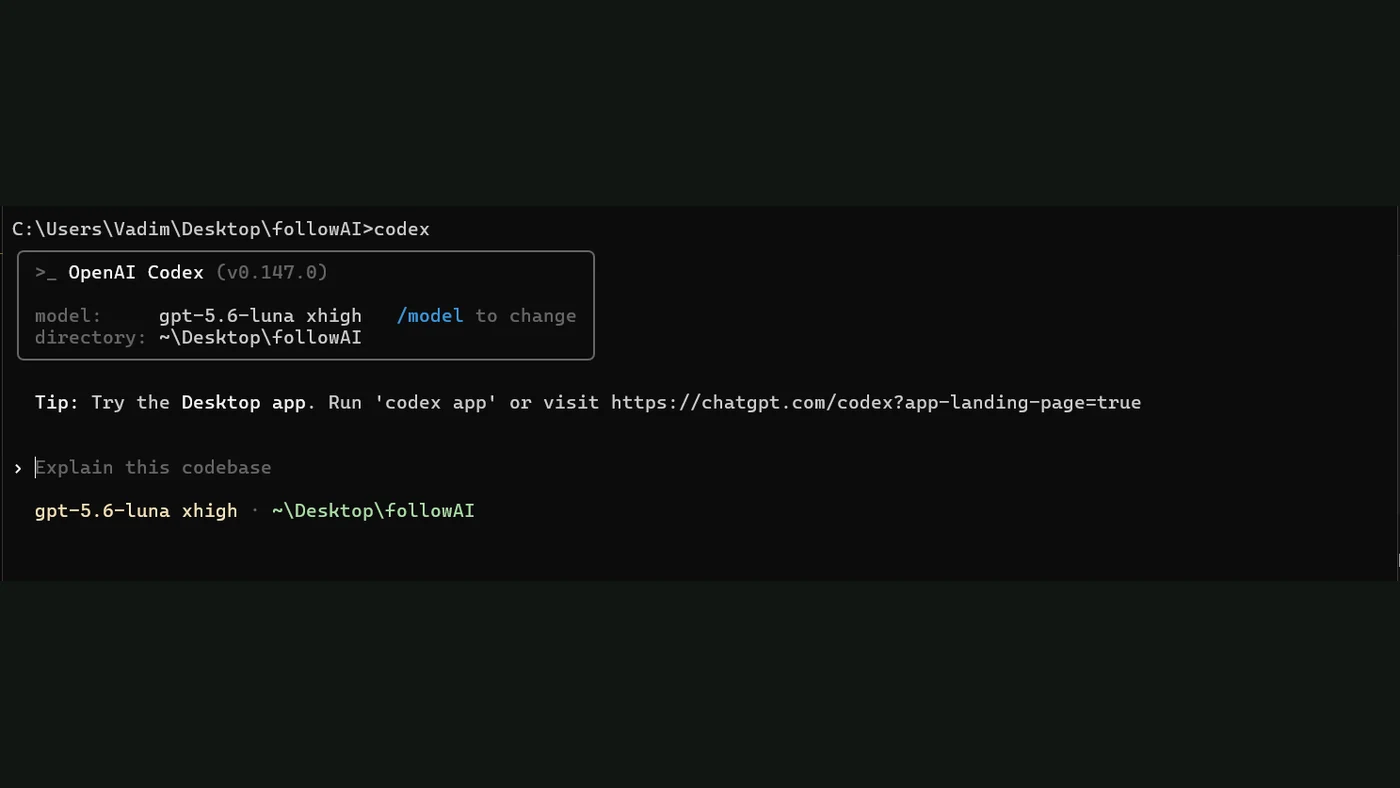
Claude Code and Codex document support for MCP connections. The actual abilities depend on the server you choose and the permissions you give it.
“Connected” does not mean “allowed to do anything.” Reading information and changing it are different abilities. Check both.
A simple example
Imagine you want a weekly update from your project tasks. The useful result is a short note: what is complete, what is blocked and what needs attention.
Before connecting anything, write the task:
Read tasks from this one project.
Prepare a short weekly update with links to the task records.
Do not change task status or send the report to anyone.
List any records you could not access.
That example specifies the work. It does not imply that every project tool already has a server with those exact abilities.
Choose a connection you can identify
Prefer the service’s own documented connection when one is available. Check the provider, the tools it exposes and the account access it requests.
If someone tells you to install a server, ask where it comes from and what it will run. A popular name is not a substitute for understanding the permissions.
Start with one account, one project or one folder where the service supports that scope. Test reading information before enabling actions that change records.
What about skills?
A skill keeps instructions for doing the job. MCP supplies a tool connection. They can work together: the skill says how to prepare the report, and the connection provides the records.
Neither fixes unclear source information. If task dates are wrong in the original system, your report needs to show that uncertainty rather than quietly choose a date.
What should you check after setup?
Ask for one known item and open its source yourself. Then try information the assistant should not have. Confirm that the connection respects the intended limits.
Keep a note of how to disconnect it. When you stop using the tool, remove access rather than leaving an unused connection in place.
MCP becomes useful when it removes a real copy-and-paste step while keeping the result easy to verify. If you are still making your first small tool, you can leave it for later and start with the Codex beginner guide.
Sources
- Claude Code MCP connectionsOfficial documentation
- Codex MCP connectionsOfficial documentation
- Claude Code skillsOfficial documentation