Your First n8n Workflow: A Form, a Sheet and a Notification
Learn n8n with one useful job: collect a request, save it in Google Sheets and send yourself a Telegram notification.
On this page
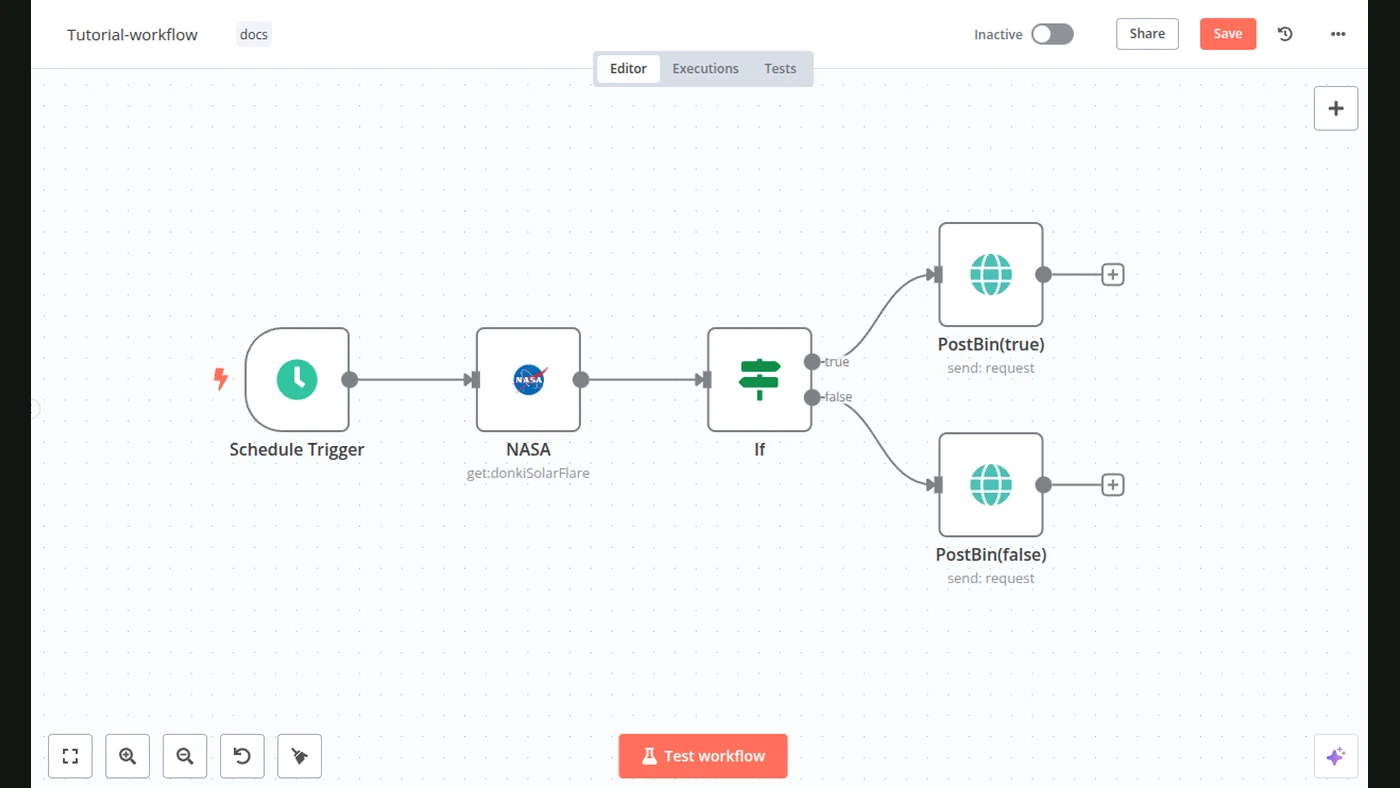
n8n connects tools into a workflow: one thing starts the job, and a set of steps handles what follows. A good first example is a request form that saves an entry in Google Sheets and sends you a Telegram notification.
That is useful for a small shop, a freelancer or anyone who keeps losing requests between an inbox and a spreadsheet. You can learn the basic connections without adding AI before you need it.
What you are building
| Step | Job | What goes in |
|---|---|---|
| Form Trigger | Collect the request | Name, contact and question |
| Google Sheets | Save a record | A row with the submitted details |
| Telegram | Notify you | A short message with the request |
This is a proposed starter workflow. It is not a claim that we connected your accounts or tested a client’s setup.
Start with the form
Create a workflow and add n8n’s Form Trigger. It provides a form that can start the workflow when someone submits it. The official form guide explains the fields and the test and production URLs.
Keep the first form short. Ask for what you need to answer the request. A long questionnaire is not a requirement for learning the tool.
Use a test name and a made-up question first. Check the output of the form step before connecting anything else. You should see the fields you expect.
Save one row in a spreadsheet
Prepare a sheet with clear column names: name, contact, question and time. Connect your Google account using the method supported by your n8n setup, then add a Google Sheets step.
Choose the append-row action and match the form fields to the right columns. The Sheets documentation describes the supported operations.
Submit one test request and open the sheet yourself. Did the question go into the question column? Did the workflow create one row, not several? Checking the actual record is more useful than seeing a green block.
Add the notification
Connect a Telegram bot you control and configure the Telegram step to send a message to the intended chat. Use the official Telegram node guide for credentials and message operations.
Keep credentials in the tool’s credential settings. Do not paste a bot token into a public page or screenshot.
An example notification could say:
New request
Name: the submitted name
Question: the submitted question
Open the request sheet to follow up.
Decide which details really belong in a chat notification. You may prefer a short summary instead of sending all customer information to a shared team chat.
Test the whole path
Try a normal request, a missing optional field and a repeated submission. Watch whether the record is saved and the notification reaches the right place.
Also decide what happens if Telegram is unavailable. The request should not disappear just because the last step failed. Save the record first and make the failure visible to the owner.
When the test version works, use the production form URL and the workflow’s current publish or activation controls. Those labels can vary with n8n versions.
Where could AI fit later?
You might add a short summary or a category for a long request. First ask whether that would change what you do next. If you only need the original question, leave it alone.
The first useful skill is seeing how information moves from one tool to another. After that, our AI automation guide can help you choose a sensible AI-assisted step.
Sources
- n8n: Form TriggerOfficial documentation
- n8n: Google SheetsOfficial documentation
- n8n: TelegramOfficial documentation